
Outliner
Available in Rhino and RhinoArtisan User Interface
The Outliner panel is responsible for organizing the global parameters of your design, and all the elements it's made of.
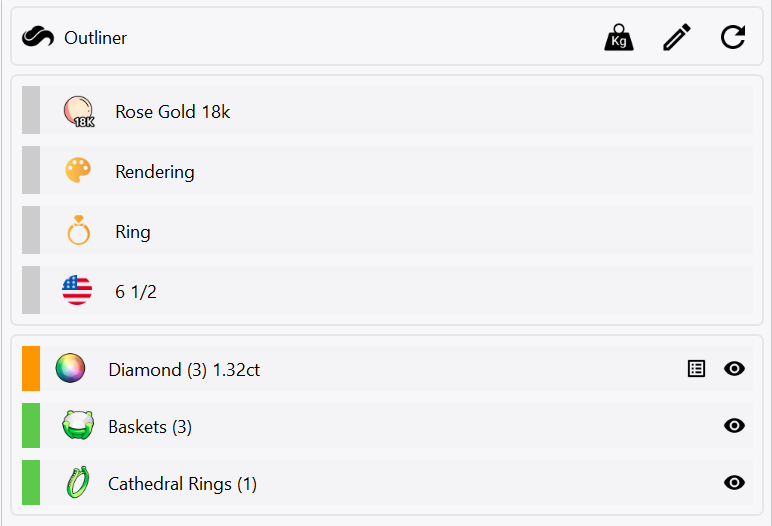
This section is divided into 2 parts:
Global Parameters, which define common configurations applied to all your design's elements.
Design Elements, which is a representation of the components that form your design.
In addition, this panel has three buttons on the top-left corner:
Weight: When clicked on, opens up a window displaying the weight of metals in grams, and the carat weight of gems from your design. This data will automatically be stored in your clipboard.
Edit: After clicking this button, you will be able to edit the element you select. To cancel this operation, right-click on your viewport.
Refresh Design: By pressing this icon, 2Shapes will unite stray gems and adapt the design to its new measurements. For example, if you change a shank's finger size, clicking this button will adapt the design's element to the new shank size.
We suggest docking this toolbar to the right side of your layout, especially within the same area where you have other panels, to optimize space.
Global Parameters
The Global parameters on the Outliner, define traits that will affect all the elements of your design. Changing a global parameter will update all your elements to match the change.
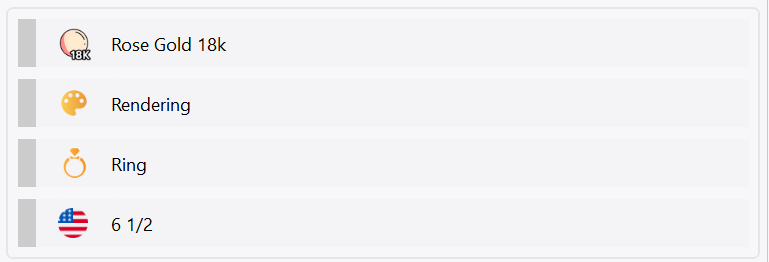
These are all the possible Global Parameters:
Metal: The color, purity, and type of metal that will be used to display your design. This parameter affects its weight.
Display mode: How you want to see your design, either Rendering to see how it would be as a finished piece, or Manufacturing to see how it would be after being 3D printed.
Design type: What kind of jewelry piece is your design, this parameter may be automatically set depending on what elements you add to your design.
Finger size and scale: Only present in ring designs, it allows you to set the size of the shank, and switch between multiple international ring size measurement scales.
Design Elements
The elements that are present in your designs will be displayed below the Outliner's Global Parameters. This list of elements allows you to have a clear view of the components that form your design.
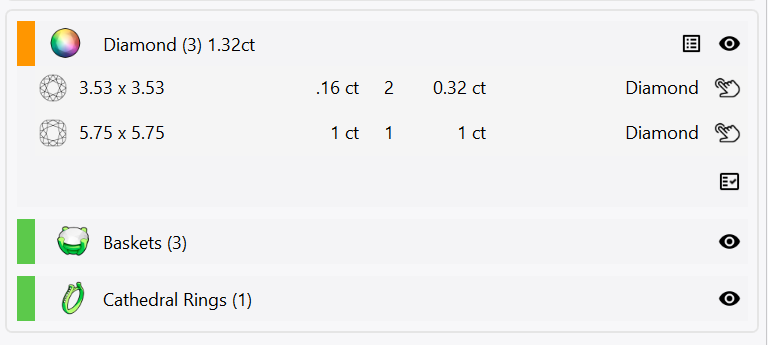
Each element listed has from left to right the following features:
A colored line, that if pressed, will open the element's parameters if applicable.
An icon that represents the type of element it is.
The name of the element.
The number of same elements in total present on your design in parenthesis.
Listed gems on the Outliner display some more icons:
The total weight of the same type of gems in carats.
A button that expands a detailed report with the following icons:
On the right of each gem, an icon that lets you select the specific gem individually.
At the lower-right corner of the report, a button that allows you to create the report on your viewport. To place the report click on the point you want it to be generated, to cancel this operation right-click a viewport.
An icon resembling an eye, that if clicked hides and shows the element on your viewports.